WOW 3 years have flown by, this latest episode the team recaps:
- Our 2020 Episodes
- How 2019 rolled into 2020
- Key features from 2020
- Looking forward into 2021
New intro music provided by Habib's son Mo.
Podcast: Play in new window | Download

Northern Perspective on Microsoft 365 , Copilot & Teams
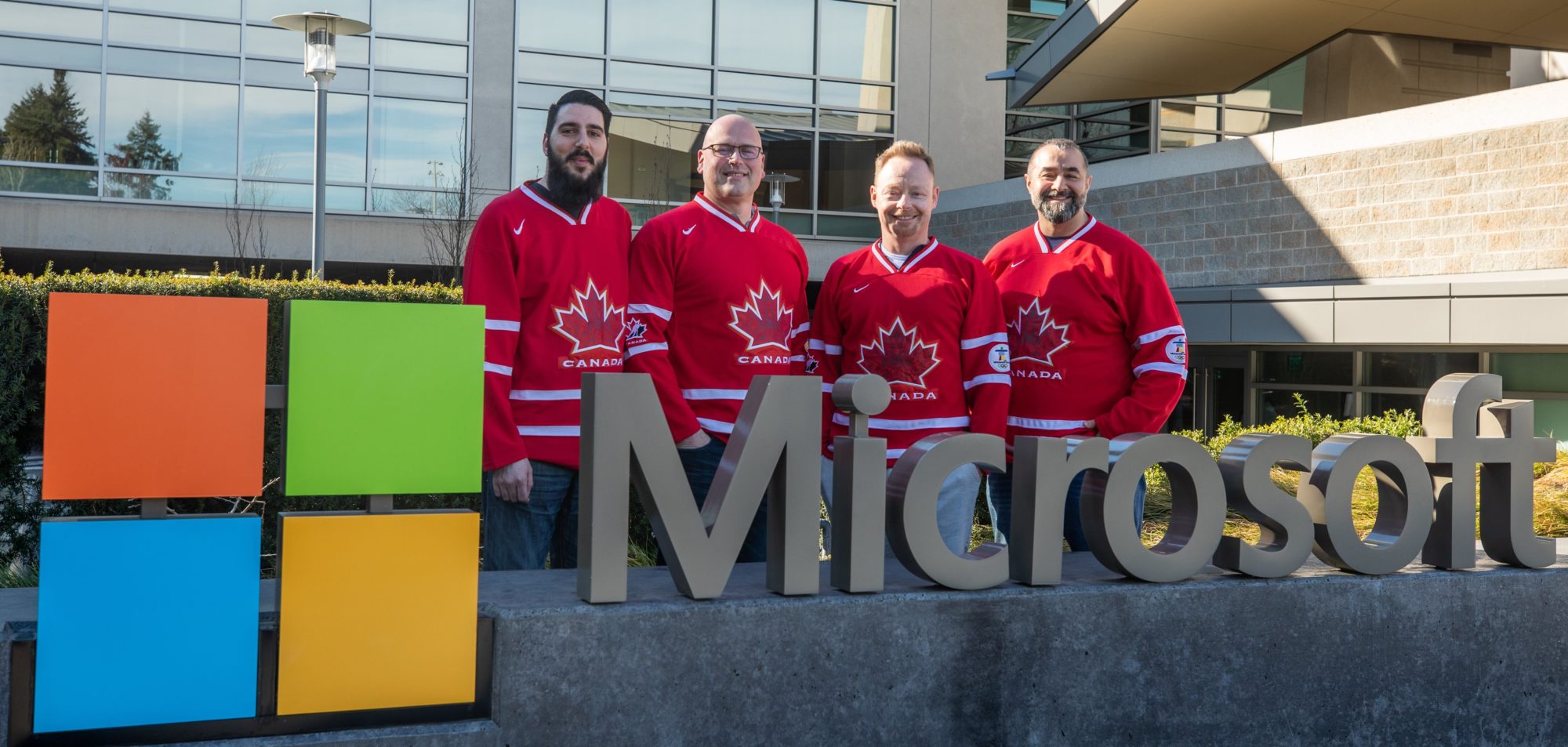
WOW 3 years have flown by, this latest episode the team recaps:
New intro music provided by Habib's son Mo.
Podcast: Play in new window | Download
Hi, all in this episode we have a Fireside chat on Emergency Services in Teams, with our very own resident experts Dino Caputo and Michael LaMontagne.
What do we have to think about for Emergency services, as we continue to work from home, and plan for return to work?
Podcast: Play in new window | Download
In this episode, the team discusses what is the Microsoft release methodology when it comes to Microsoft 365 and Office. Where are the locations to manage this functionality, what they mean, and how to get into insider- pre-release programs.
Launch of Microsoft Teams preview experience and alignment with Microsoft 365 deployment channels
Set up the Standard or Targeted release options

Podcast: Play in new window | Download
In this episode, the team goes deeper into the discussion about Microsoft Teams templates.
Podcast: Play in new window | Download
In this episode, the team talks about Power Platform Sr. Platform Evangelist at Microsoft Jon Levesque
Podcast: Play in new window | Download
Microsoft365DSC is an Open-Source initiative hosted on GitHub, lead by Microsoft engineers and maintained by the community. It allows you to write a definition for how your Microsoft 365 tenant should be configured, automate the deployment of that configuration, and ensures the monitoring of the defined configuration, notifying and acting on detected configuration drifts. It also allows you to extract a full-fidelity configuration out of any existing Microsoft 365 tenant. The tool covers all major Microsoft 365 workloads such as Exchange Online, Teams, Power Platforms, SharePoint and Security and Compliance.
Ordinarily, you would need to run MicrosoftDSC manually or setup an “agent” on a server to monitor changes in your tenant (tenant drift) which can be cumbersome and not always practical for some environments.
Azure Automation is a service in Azure that allows you to automate your Azure management tasks and to orchestrate actions across external systems from right within Azure.
The following guide shows you what how to setup Microsoft DSC as an Azure runbook. The runbook will monitor for changes in your Office 365 tenant an alert you when any changes do occur.
Running MicrosoftDSC requires many prerequisite PowerShell Modules and dependencies to be installed into your Azure Tenant. This quite a cumbersome process so we have created a script to simplify this. **Shout out to fellow MVP Barbara Forbes for the inspiration for this code - https://twitter.com/Ba4bes**
Before running this you will need to do the following things:
This will install all the required Microsoft 365 DSC Prerequisites PowerShell Modules to use within your automation RunBook.
install-module az.accounts
install-module az.automation

#Update the values below specific to your tenant!
$tenantID = "YOUR TENANTID HERE"
$subscriptionID = "YOUR SUBSCRIPTION ID HERE"
$automationAccount = "Your M365Automation Account Here"
$resourceGroup = "Your Azure Resource Group Here"

$moduleName = "Microsoft365dsc"
Connect-AzAccount -SubscriptionId $subscriptionID -Tenant $tenantID

Function Get-Dependency {
#Function modifed from: https://4bes.nl/2019/09/05/script-update-all-powershell-modules-in-your-automation-account/
    param(
        [Parameter(Mandatory = $true)]
        [string] $ModuleName
    )

    $OrderedModules = [System.Collections.ArrayList]@()

    # Getting dependencies from the gallery
    Write-Verbose "Checking dependencies for $ModuleName"
     $ModuleUri = "https://www.powershellgallery.com/api/v2/Search()?`$filter={1}&searchTerm=%27{0}%27&targetFramework=%27%27&includePrerelease=false&`$skip=0&`$top=40"
    $CurrentModuleUrl = $ModuleUri -f $ModuleName, 'IsLatestVersion'
    $SearchResult = Invoke-RestMethod -Method Get -Uri $CurrentModuleUrl -UseBasicParsing | Where-Object { $_.title.InnerText -eq $ModuleName }

    if ($null -eq $SearchResult) {
        Write-Output "Could not find module $ModuleName in PowerShell Gallery."
        Continue
    }
    $ModuleInformation = (Invoke-RestMethod -Method Get -UseBasicParsing -Uri $SearchResult.id)

    #Creating Variables to get an object
    $ModuleVersion = $ModuleInformation.entry.properties.version
    $Dependencies = $ModuleInformation.entry.properties.dependencies
    $DependencyReadable = $Dependencies -split ":\|"

    $ModuleObject = [PSCustomObject]@{
        ModuleName    = $ModuleName
        ModuleVersion = $ModuleVersion
    }

    # If no dependencies are found, the module is added to the list
    if (![string]::IsNullOrEmpty($Dependencies) ) {
        foreach ($dependency in $DependencyReadable){
            $DepenencyObject = [PSCustomObject]@{
                ModuleName    = $($dependency.split(':')[0])
                ModuleVersion = $($dependency.split(':')[1].substring(1).split(',')[0])
            }
            $OrderedModules.Add($DepenencyObject) | Out-Null
        }
    }

    $OrderedModules.Add($ModuleObject) | Out-Null

    return $OrderedModules
}

$ModulesAndDependencies = Get-Dependency -moduleName $moduleName
#$ModulesAndDependencies

write-output "Installing $($ModulesAndDependencies | ConvertTo-Json)"

#Install Module and Dependencies into Automation Account
foreach($module in $ModulesAndDependencies){
    $CheckInstalled = get-AzAutomationModule -AutomationAccountName $automationAccount -ResourceGroupName $resourceGroup -Name $($module.modulename) -ErrorAction SilentlyContinue
    if($CheckInstalled.ProvisioningState -eq "Succeeded" -and $CheckInstalled.Version -ge $module.ModuleVersion){
        write-output "$($module.modulename) existing: v$($CheckInstalled.Version), required: v$($module.moduleVersion)"
    }
    else{
        New-AzAutomationModule -AutomationAccountName $automationAccount -ResourceGroupName $resourceGroup -Name $($module.modulename) -ContentLinkUri "https://www.powershellgallery.com/api/v2/package/$($module.modulename)/$($module.moduleVersion)" -Verbose
        While($(get-AzAutomationModule -AutomationAccountName $automationAccount -ResourceGroupName $resourceGroup -Name $($module.modulename)).ProvisioningState -eq 'Creating'){
            Write-output 'Importing $($module.modulename)...'
            start-sleep -Seconds 10
        }
    }
}
Here is the sample code as your Azure RunBook. This can be scheduled to run on regular basis.
$creds = Get-AutomationPSCredential -Name "AutomationAccount"
$GitHubDSCConfig = 'https://raw.githubusercontent.com/YOURGITHUB/m365dscsample/main/GoldStandardDSCConfig.ps1'

$path = "$env:TEMP"
$Date = $(Get-Date -f yyyy-MMM-dd-HHMMtt)

write-output "Pulling DSC from Tenant $Date"
Export-M365DSCConfiguration -Quiet -Workloads @("TEAMS") -GlobalAdminAccount $creds -path $path -filename "runbook_$date.ps1" *>&1 | out-null

write-output "Pulling DSC from GitHub"
Invoke-RestMethod -Uri $GitHubDSCConfig -OutFile "$path\dscconfig_$date.ps1"

write-output "Generating Delta Report`r`n"
New-m365dscdeltareport -source "$path\dscconfig_$date.ps1" -destination "$path\runbook_$date.ps1" -OutputPath "$path\DeltaNew_$date.HTML" *>&1 | out-null

$readfile = Get-Content -path "$path\DeltaNew_$date.HTML"
write-output $readfile

write-output "Send Email"

$sendMailParams = @{
    Credential = $Creds
    From = $($Creds.username)
    To = 'habib@mydomain.com', 'michael@mydomain.com','dino@mydomain.com','curtis@mydomain.com'
    Subject = "DSC Delta Report - $Date"
    Body = "This is the delta report between your tenant and the Baseline Configuration $readfile"
    BodyasHtml = $true
    Attachments = "$path\DeltaNew_$date.HTML"
    SMTPServer = 'smtp.office365.com'
    Port = 587
    UseSsl = $true
    DeliveryNotificationOption = 'OnFailure','OnSuccess'
    Encoding = 'UTF8'
    Priority = 'High'
    EA = 'Stop'
}

Send-MailMessage @sendMailParams
Podcast: Play in new window | Download
In this episode, the team discusses our Microsoft Ignite favorite announcements that we are excited and interested about.
In this episode, we have a good chat with the guys who are coordinating Teamsfest. They give us a rundown about the 1-day event that is jam-packed with a star-studded lineup with sessions related to Microsoft Teams.
Registration Link for the event: TeamsFest 2020 (sessionize.com)
Podcast: Play in new window | Download
In this episode the team discusses the new highly impactful end-user changes, these features are large enough that would require changes to documentation or end-user adoption and training.
Podcast: Play in new window | Download
In this episode, the team talks with CEO Matt Landis, of Landis Technologies who are are one of the Microsoft Teams Certified Contact Center & Compliance Cloud recording partners.
We discuss their products:
Podcast: Play in new window | Download